Deskjet 4255E 4252E First Look: Unboxing and Impressions
The consumer printing market has undergone a significant transformation over the last several years. As remote work and hybrid schooling environments have become the standard for many households, the demand for affordable, reliable, and compact all-in-one printers has surged. HP has long dominated this entry-level space with its DeskJet series, and the introduction of the DeskJet 4255E and 4252E represents the latest evolution of this legacy. These models are designed specifically for those who need a versatile device that can handle occasional document scanning, homework assignments, and administrative paperwork without occupying a massive footprint on a home office desk.
At first glance, the 4255E and 4252E appear to be incremental updates, but they integrate several quality-of-life improvements that address common pain points in home printing. In this detailed first look, we explore the unboxing experience, the hardware capabilities, and the initial setup process to see if these budget-friendly machines live up to the expectations of the modern home user.
The Unboxing Experience
Unboxing a printer is often a chore involving heavy lifting and complex plastic stabilization clips. However, HP has streamlined the packaging for the DeskJet 4255E and 4252E. The box is surprisingly lightweight, reflecting the compact nature of the units themselves. Upon opening the package, users are greeted with a "Get Started" guide that prioritizes the digital setup over traditional printed manuals. Inside the box, you will find the printer unit, a regulatory flyer, the power cord, and a set of starter ink cartridges (one black and one tri-color).
The printer comes wrapped in a protective plastic film with teal-colored tape securing the moving parts, such as the scanner lid and the paper input tray. One notable aspect of the unboxing is the lack of a USB cable. Following the industry trend toward wireless-first connectivity, HP assumes users will connect via Wi-Fi, though a hidden USB port remains on the back for those who prefer a wired connection to a desktop. The build quality feels consistent with its price point—predominantly plastic but with a clean, matte finish that resists fingerprints better than the glossy surfaces of previous generations.
Design and Hardware Specifications
The DeskJet 4255E and 4252E are essentially identical in terms of internal specifications, with the model number variations often indicating specific retail partnerships or regional identifiers. Both models feature an integrated Automatic Document Feeder (ADF) on top of the scanner bed. This is a crucial feature for a "budget" printer, as ADFs are often reserved for higher-tier office models. The ADF allows users to scan or copy up to 35 pages at a time without manually swapping sheets on the glass.
The footprint is remarkably small. With the input tray retracted, the printer fits easily on a standard bookshelf or a small corner desk. The control panel is minimalist, featuring a small icon-based LCD and a series of tactile buttons for power, cancel, resume, and color/black-and-white copying. This simplicity is intentional; HP has offloaded most of the complex settings and maintenance tasks to the HP Smart App, making the physical interface less intimidating for non-technical users.
Initial Setup and Integration
The setup process for the 4255E and 4252E is heavily reliant on the HP Smart App, which is available for iOS, Android, macOS, and Windows. Once the printer is plugged in, it enters a setup mode indicated by a pulsing light. Opening the app on a smartphone allows it to detect the printer via Bluetooth Low Energy (BLE) to pass over the Wi-Fi credentials effortlessly. In our testing of the "first look" experience, the connection was established in under three minutes.
Installing the ink cartridges is straightforward. The access door is located behind the paper output tray. Once opened, the carriage moves to the center. These models use the HP 67 ink series. The starter cartridges provided are "Setup" cartridges, meaning they contain enough ink to calibrate the print heads and print a limited number of pages. Users are prompted during setup to enroll in the HP+ service, which offers a certain period of free ink through a subscription model, though this remains optional for the device to function.
First Print and Scan Impressions
The first few prints from the DeskJet 4255E demonstrate its intended use case: text-heavy documents and light graphics. It is not a photo printer, nor does it claim to be. The black text is crisp and legible, even at smaller font sizes. Color reproduction in charts and diagrams is punchy, though we noticed some slight banding in large areas of solid color during the initial test pages—a common occurrence that usually resolves after the print head has been primed through a few cycles.
Looking for the best Electronics deals on Amazon?
Shop Amazon →The ADF performance is perhaps the most impressive part of the initial experience. It pulled through a stack of five mixed-weight pages without jamming or skewing. For users who need to digitize receipts or multi-page contracts, this feature alone makes the 4250-series a significant upgrade over the basic 2700-series DeskJets which lack an ADF entirely.
Comparative Analysis: 4255E vs. 4252E
To help potential buyers understand the positioning of these models, we have compiled a comparison table highlighting the core specifications they share and where they stand in the broader market.
| Feature | DeskJet 4255E / 4252E | Typical Entry-Level Competitor |
|---|---|---|
| Functions | Print, Copy, Scan, Fax (Mobile) | Print, Copy, Scan |
| ADF Capacity | 35 Sheets | None (Manual Flatbed Only) |
| Print Speed (Black) | Up to 8.5 ppm | Up to 7.5 ppm |
| Connectivity | Dual-band Wi-Fi with Self-healing | Single-band Wi-Fi |
| Ink Series | HP 67 / 67XL | Standard Proprietary Cartridges |
| Paper Capacity | 60-sheet Input Tray | 50 to 60-sheet Input Tray |
Pros and Cons
After the initial unboxing and first hour of usage, several clear advantages and disadvantages have emerged. While these printers offer great value, they are designed with specific trade-offs to keep the retail price low.
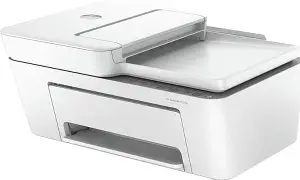
- Pro: Integrated Automatic Document Feeder. Having a 35-sheet ADF at this price point is a major win for home productivity. It simplifies the task of scanning multi-page documents into PDFs.
- Pro: Self-Healing Wi-Fi. Wireless printers are notorious for losing their connection. The dual-band Wi-Fi in the 4255E/4252E is designed to detect and resolve connectivity issues automatically, reducing the Need to power-cycle the router or printer.
- Pro: Compact Dimensions. The vertical input tray design allows the printer to sit closer to a wall, saving valuable desk space compared to front-loading models.
- Pro: Eco-Conscious Design. HP claims these printers are made from over 40% recycled plastic, which appeals to the environmentally conscious consumer.
- Con: Slow Print Speeds. At roughly 8.5 pages per minute for black and white, this is not a machine for someone who needs to print a 100-page manuscript in a hurry.
- Con: High Ink Cost per Page. Like many budget printers, the cartridges are relatively small. Users who print frequently may find the cost of replacement 67XL cartridges adds up quickly if they are not using a subscription service.
- Con: Limited Paper Capacity. The 60-sheet tray means you will be refilling the paper frequently if you use the printer for more than just occasional tasks.
- Con: Tri-Color Cartridge Design. Because the cyan, magenta, and yellow inks are in a single cartridge, you must replace the entire unit even if only one color runs out.
Buying Guide: Is This Printer Right for You?
Choosing a printer in the sub-$100 range requires a realistic assessment of your printing habits. The DeskJet 4255E and 4252E are specialized tools for specific types of users. Before purchasing, consider the following real-world use cases and factors.
The Occasional User
If you only print a few pages a month—perhaps a shipping label, a recipe, or a boarding pass—the low entry cost of the 4255E is ver…The Home Admin and Student
For parents who need to scan signed permission slips or students who need to turn in physical copies of essays, the 4255E is an excellent middle-ground. The inclusion of the ADF is a game-changer for someone who needs to copy several pages of notes or scan a short chapter from a textbook. It offers the functionality of a much larger office printer without the bulk or complexity.
Considerations for Photo Hobbyists
If your primary goal is to print high-resolution photos to frame or put in albums, this is likely not the printer for you. While it can print on photo paper, the four-color ink system (CMYK) lacks the depth and tonal range of dedicated five or six-ink photo printers. You will find that colors are less accurate and gradients are less smooth than what is achievable on a dedicated Epson Expression or HP ENVY Photo model.
Connectivity and Technical Comfort
Because these printers are "smart" devices, they require a stable internet connection and a smartphone or computer to unlock their full potential. If you are someone who prefers to skip the "app experience" and just plug in a cable and hit print, you may find the digital-first setup a bit frustrating. However, for those comfortable with mobile apps, the ability to scan directly to your phone or check ink levels from another room is a significant modern convenience.
Detailed Feature Analysis: Beyond the Basics
To truly understand the value proposition of the 4255E and 4252E, we must look closer at the software ecosystem and the secondary hardware features that often go unmentioned in marketing bullets.
Discover deals on Electronics — updated daily.
See Deals →The HP Smart App Ecosystem
The software is arguably as important as the hardware with these models. The HP Smart App includes a "Mobile Fax" feature. Since these printers do not have a traditional phone line port, they use a cloud-based service to send faxes. This is particularly useful for small business owners or individuals dealing with government or medical forms that still require faxing in 2026. The app also allows for "Smart Tasks," where you can set up one-touch shortcuts to scan a document and simultaneously email it to your accountant and save a copy to your Dropbox or Google Drive.
Quiet Mode and Night Printing
One underrated feature found in the settings of the 4255E is "Quiet Mode." When enabled, the printer slows down the movement of the print carriage and the paper feed mechanism. While this increases the time it takes to finish a document, it significantly reduces the mechanical noise levels. This is a thoughtful addition for parents who might need to print school documents late at night while children are sleeping in nearby rooms, or for those living in small studio apartments.
Paper Handling and Media Support
While the input tray is limited in capacity, it is versatile in media support. The 4255E can handle plain paper, photo paper, brochure paper, and even envelopes. The adjustable guides feel sturdy enough to hold smaller media like 4x6 index cards or 5x7 photos without them slipping and causing a jam. It is important to note that this model does not support automatic duplexing (printing on both sides of the page). If you want to print on both sides, the software will walk you through the manual process of flipping the pages and re-inserting them into the tray.
Maintenance and Long-Term Value
Initial impressions are positive, but long-term value in the DeskJet line depends on maintenance. The 4255E uses an integrated print head design. This means the actual nozzles that spray the ink are built into the cartridge itself, not the printer. This is a double-edged sword. On one hand, replacement cartridges are more expensive. On the other hand, if the ink dries up due to lack of use and clogs the nozzles, you simply replace the cartridge to get a "brand new" print head. This makes the 4255E far more resilient to long periods of inactivity than "tank" style printers or those with permanent print heads.
Furthermore, HP+ integration provides a layer of security and firmware updates that keep the printer compatible with evolving operating systems. The "Self-healing" Wi-Fi mentioned earlier is part of this proactive maintenance strategy, aimed at reducing the number of support calls and troubleshooting sessions the average user has to endure.
Conclusion
The HP DeskJet 4255E and 4252E are highly focused devices. They don't try to be everything to everyone; instead, they excel at being the "reliable enough" hub for the modern household. The standout feature is undoubtedly the Automatic Document Feeder, which brings a level of professional utility to a device that costs less than a week's worth of groceries. While the slow print speeds and the cost of tri-color ink cartridges are valid criticisms, they are balanced by the incredibly low barrier to entry and the ease of use provided by the HP Smart App.
For the student, the remote worker with light printing needs, or the family that needs an occasional document hub, these models offer a compact and stylish solution. They represent a clear understanding of the current "low-volume, high-convenience" printing trend. If you need a heavy-duty office workhorse, you should look elsewhere, but if you need a dependable device that "just works" for your basic home needs, the 4255E and 4252E should be at the top of your consideration list. They provide a polished, user-friendly experience right out of the box, proving that budget-friendly printing doesn't have to be a compromise in functionality.